WSL2 + Dev Drive on D: without filling C:
Move WSL2's Ubuntu VHDX and your Windows-side projects and package caches to a D: Dev Drive on Windows 11 26H2 — with the ReFS limits Microsoft documents.
- Build
- 26300.9457
- Edition
- Pro (26H2)
- Architecture
- x64
- Support
- Lab (WSL2 + Dev Drive)
- Evidence
- E2Reproduced in the lab
- Risk
- R2Needs a restore point
- Verified
- 2026-10-28
- Test machine
- PVE 9.2.2 VM 361; Windows 11 Pro 26H2 26300.9457; 8GB/4 vCPU; 128GB SATA data disk formatted as D: ReFS Dev Drive; WSL 3.0.3; Ubuntu 24.04
- Page type
- Task
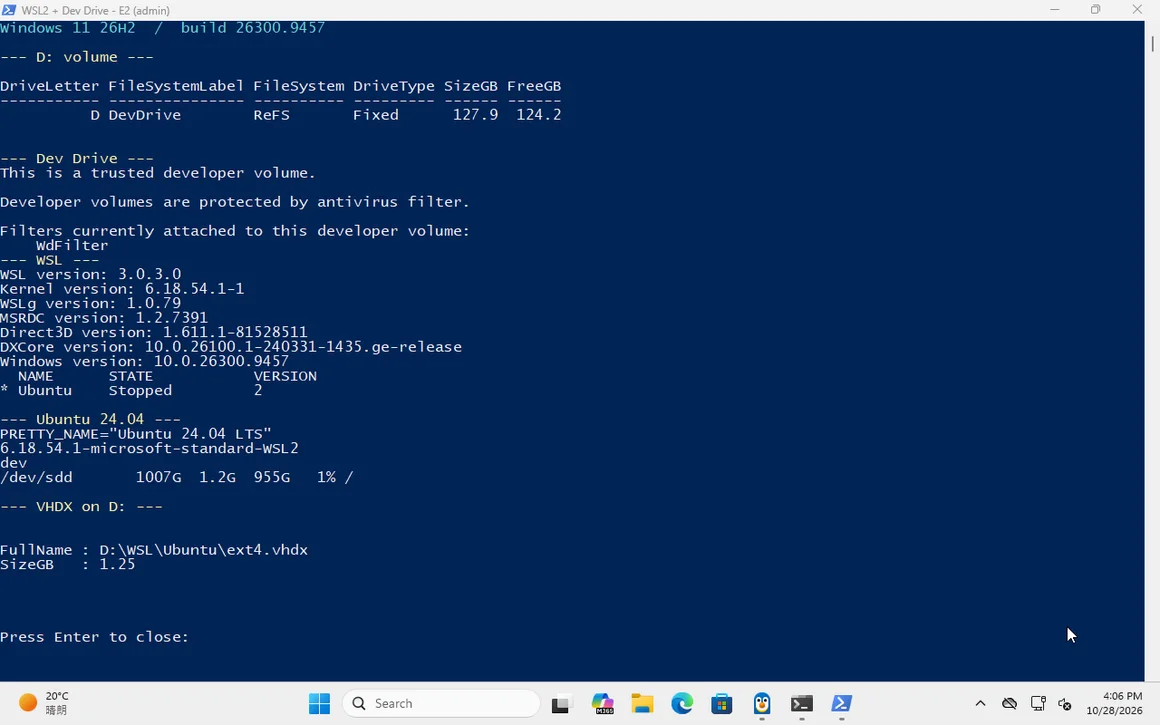
ext4.vhdx is on D:. Click to open full size.The short answer
Section titled “The short answer”WSL2 stores each Linux distribution in a VHDX. By default that file lives under %LOCALAPPDATA% on C:. You can put it on D: instead, format D: as a Dev Drive, and keep C: for Windows itself.
This lab did exactly that on Windows 11 26H2:
| Item | Lab result |
|---|---|
| D: volume | 127.9GB ReFS, label DevDrive, trusted developer volume |
| WSL | 3.0.3.0, default version 2 |
| Distribution | Ubuntu 24.04 LTS |
| Kernel | 6.18.54.1-microsoft-standard-WSL2 |
| VHDX | D:\WSL\Ubuntu\ext4.vhdx, 1.25GB after first boot |
| User | dev, default in /etc/wsl.conf |
But get the expectation right before you copy commands:
If speed is the only goal, leaving the VHDX on C: is simpler. This layout is about capacity isolation: the VHDX and Windows-side data live on D:, while Linux files stay inside ext4.
Before you start
Section titled “Before you start”| Check | Requirement |
|---|---|
| Windows | Windows 11 22H2 build 22621.2338 or later for Dev Drive |
| Free space | At least 50GB for the Dev Drive; 128GB is comfortable |
| Permissions | Local administrator; fsutil and disk formatting need elevation |
| Disk | A new or unallocated disk. Formatting destroys it |
| Virtualization | WSL2 needs virtualization; if Windows is itself a VM, nested virtualization must be enabled |
| Backup | Any existing data on the target disk is erased |
Step 1 — Make D: a Dev Drive
Section titled “Step 1 — Make D: a Dev Drive”Dev Drive is created only at format time. You cannot convert an existing NTFS volume in place, and C: cannot be a Dev Drive.
Get-Disk | Format-Table Number,FriendlyName,PartitionStyle,OperationalStatus,SizeGet-Volume | Format-Table DriveLetter,FileSystemLabel,FileSystem,DriveType,SizeIf D: is currently a CD/DVD drive, move that drive letter first. In the lab the 26H2 ISO held D:, so it was reassigned to Y: before the data disk was formatted.
Expected: The new disk is Online, RAW or uninitialized, and has the size you expected.
Initialize-Disk -Number 1 -PartitionStyle GPTNew-Partition -DiskNumber 1 -UseMaximumSize -DriveLetter DFormat-Volume -DriveLetter D -FileSystem ReFS -NewFileSystemLabel DevDrive -DevDrive -Confirm:$falseVerify from an elevated PowerShell:
Get-Volume -DriveLetter Dfsutil devdrv query D:Expected output includes This is a trusted developer volume. A normal, non-elevated shell can return Access is denied for fsutil; that is a permission issue, not a broken Dev Drive.
Expected: D: is ReFS, labelled DevDrive, and fsutil reports a trusted developer volume.
The Settings path is equivalent: System → Storage → Advanced storage settings → Disks & volumes → Create dev drive. The command line is easier to document and repeat.
Step 2 — Install WSL2
Section titled “Step 2 — Install WSL2”On a normal Windows 11 PC, the supported path is:
wsl --install --no-distributionReboot if Setup asks. Then check:
wsl --versionwsl --statusExpected: WSL installs; a reboot may be required for Virtual Machine Platform.
Step 3 — Put Ubuntu on D:
Section titled “Step 3 — Put Ubuntu on D:”If the distribution list is reachable, one command does it:
wsl --install -d Ubuntu --location D:\WSL\Ubuntu --no-launch--location must be an absolute path. --no-launch avoids the interactive first-run prompt until you are ready.
Then start it once to create your Linux user:
wsl -d UbuntuExpected: Ubuntu is registered and its ext4.vhdx is created under D:\WSL\Ubuntu.
If wsl --install cannot fetch the distribution list, use Ubuntu’s official rootfs and import it. This is also the reproducible path for an offline or restricted network.
New-Item -ItemType Directory D:\WSL -Forcecurl.exe -L -o D:\WSL\ubuntu-24.04.rootfs.tar.gz `  https://cloud-images.ubuntu.com/wsl/releases/24.04/current/ubuntu-noble-wsl-amd64-wsl.rootfs.tar.gz
# Compare with SHA256SUMS from the same directory before importingGet-FileHash D:\WSL\ubuntu-24.04.rootfs.tar.gz -Algorithm SHA256
wsl --import Ubuntu D:\WSL\Ubuntu D:\WSL\ubuntu-24.04.rootfs.tar.gz --version 2
Create a normal user, set it as the default, and stop the distro:
wsl -d Ubuntu -u root -e useradd -m -G sudo -s /bin/bash devwsl -d Ubuntu -u root -e passwd devwsl -d Ubuntu -u root -e bash -c "printf '[user]\ndefault=dev\n' > /etc/wsl.conf"wsl --terminate UbuntuExpected: Ubuntu is registered as WSL2; the VHDX is on D:.
The lab used the fallback: the distribution list URL (raw.githubusercontent.com) was reset, so wsl --install -d Ubuntu could not run. The 24.04 rootfs was verified against Ubuntu’s SHA256SUMS before import.
Step 4 — Verify the VHDX is on D:
Section titled “Step 4 — Verify the VHDX is on D:”wsl --list --verboseGet-Item D:\WSL\Ubuntu\ext4.vhdx | Select-Object FullName,Lengthwsl -d Ubuntu -e bash -lc "grep PRETTY_NAME /etc/os-release; uname -r; whoami; df -h /"Expected: VERSION is 2; the kernel ends in -microsoft-standard-WSL2; ext4.vhdx is under D:\WSL\Ubuntu.
Lab output:
NAME      STATE     VERSION* Ubuntu  Stopped   2
PRETTY_NAME="Ubuntu 24.04 LTS"6.18.54.1-microsoft-standard-WSL2devFilesystem      Size  Used Avail Use% Mounted on/dev/sdd       1007G  1.2G  955G   1% /
The VHDX grows on demand; the 1007G inside the distro is virtual capacity, not 1TB reserved on D:.
Step 5 — Decide what actually goes on D:
Section titled “Step 5 — Decide what actually goes on D:”Dev Drive is for source repositories, package caches, build output and intermediate files — not for installing applications and SDKs. Keep the tools on C:; put their data on D:.
D:\├─ Dev\ Windows-side repositories├─ packages\│ ├─ npm\ npm cache for Windows Node│ ├─ pip\ pip cache for Windows Python│ └─ cargo\ Cargo home for Windows Rust└─ WSL\ └─ Ubuntu\ └─ ext4.vhdx Linux files live inside this VHDXFor Windows tools, redirect caches only if you actually use them:
setx /M npm_config_cache D:\packages\npmsetx /M PIP_CACHE_DIR D:\packages\pipsetx /M CARGO_HOME D:\packages\cargoFor WSL, do the opposite: keep repositories inside the Linux file system, for example ~/code, not under /mnt/d/Dev. /mnt/d is a Windows file system view; it has different permissions and is slower for Linux workloads.
Step 6 — Know the ReFS limits
Section titled “Step 6 — Know the ReFS limits”| Limit | What it means in practice |
|---|---|
metadata mount option unsupported |
Do not add metadata to WSL automount options for D:; Linux ownership/permissions on /mnt/d will not behave like ext4 |
| No Linux performance gain | A VHDX on Dev Drive is still a VHD; Microsoft says not to expect Dev Drive speedups for WSL files |
| No application installs | Dev Drive is for project data, not SDKs/apps; keep tool installs on C: |
| Minimum 50GB | Smaller volumes cannot be Dev Drives |
| Format-time only | You cannot convert an existing NTFS D: into a Dev Drive without erasing it |
| Trust is per machine | Moving a Dev Drive VHD/disk to another PC loses the trusted designation until re-designated |
Troubleshooting
Section titled “Troubleshooting”| Symptom | Likely cause | First move |
|---|---|---|
HCS_E_HYPERV_NOT_INSTALLED or “virtualization is not enabled” |
Virtual Machine Platform off, firmware virtualization off, or Windows is a VM without nested virtualization | Enable the Windows features; on a VM expose SVM/VT-x and SLAT to the guest. The lab needed PVE cpu: host instead of a qemu64 baseline |
WSL_E_LOCAL_SYSTEM_NOT_SUPPORTED |
wsl.exe was launched as SYSTEM (for example by a service/agent) |
Run WSL as the logged-in user, or from an interactive scheduled task with the user’s token |
WININET_E_CONNECTION_RESET while fetching the distribution list |
raw.githubusercontent.com blocked or reset |
Use the official Ubuntu rootfs + wsl --import path above |
fsutil devdrv query returns Access is denied |
Shell is not elevated | Open PowerShell as Administrator |
ERROR_ALREADY_EXISTS on import |
A distro named Ubuntu is still registered | wsl --unregister Ubuntu destroys its data; or import under a new name |
Initialize-Disk fails |
Disk is offline, read-only, or already initialized | Check Get-Disk; do not force a disk that contains data |
Format-Volume -DevDrive fails |
Less than 50GB unallocated, or the volume was already formatted | Create at least 50GB of unallocated space; Dev Drive must be the original format |
What this page verified
Section titled “What this page verified”| Claim | Evidence |
|---|---|
| D: is a 127.9GB ReFS Dev Drive, trusted, with WdFilter attached | E2, VM 361 screenshot + fsutil devdrv query |
| WSL 3.0.3 runs Ubuntu 24.04 as WSL2 | E2, wsl --list --verbose, kernel 6.18.54.1-microsoft-standard-WSL2 |
| The Ubuntu VHDX is on D: | E2, D:\WSL\Ubuntu\ext4.vhdx |
wsl --install Store path is not universal |
E2, it failed on this image; rootfs import succeeded |
| Dev Drive speeds up Linux files | Not claimed; Microsoft says the opposite |
| Docker Desktop, VS Code, Node, Claude Code, Codex | Not tested in this run |
| Moving an existing WSL distro to D: | Not tested |
Related pages
Section titled “Related pages”- First 10 minutes on a new Windows 11 PC — updates, drivers and BitLocker before development.
- Clean install Windows 11 26H2 — the base image used for this lab.
- Windows on Arm — WSL2 on Arm is a different architecture path.