Windows Server 上的 Nginx:安装、测试与做成服务
在 Windows 解压 Nginx,从正确目录测试配置,跑在 8081,并用包装器做成服务;不把它当成 Linux Nginx。
测试环境Standard / Datacenter · 版本号 26100.33650 · x64
E1- 版本号
- 26100.33650
- 版本
- Standard / Datacenter
- 架构
- x64
- 支持
- 文档(E1)
- 证据
- E1官方文档
- 核验日期
- 2026-10-29
- 测试机
- Nginx 1.28.0 在 VM 361 Windows 11 26H2,8081 端口;Server 2025 服务包装为 E1
- 页面类型
- 配置
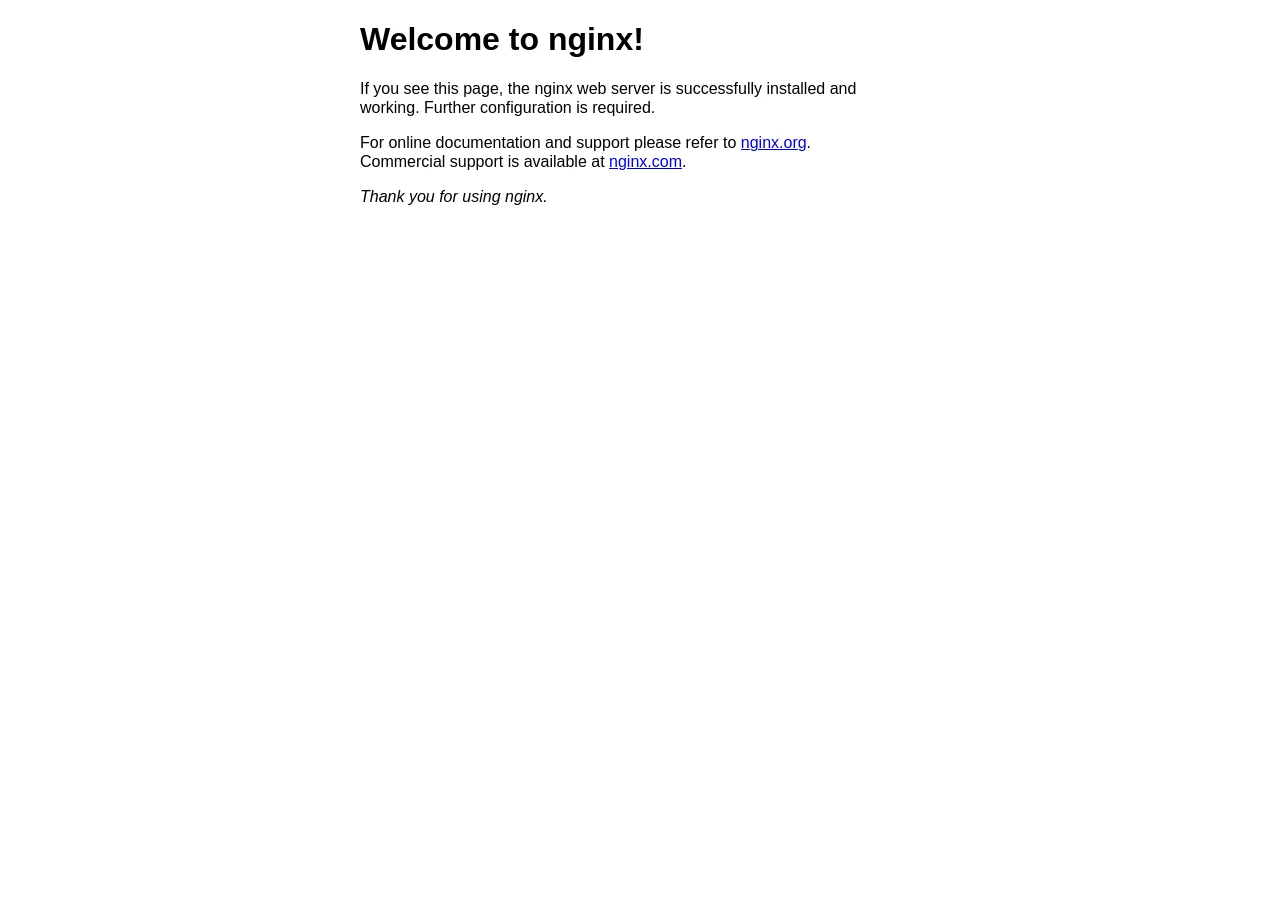
C:\nginx,默认页跑在 http://localhost:8081。Windows 11 UI;Server 2025 服务配置为 E1。Windows 上的 Nginx 默认是控制台程序,不是 Windows 服务:
cd C:\nginxnginx.exe -tstart nginxnginx.exe -s reloadnginx.exe -s stop官方 Windows 构建适合实验、内网站点或兼容层。它不等价于 Linux Nginx:没有 php-fpm、没有 HTTP/3 模块、调优项更少。不要把它写成高并发生产边缘。
- 从 nginx.org 下载 Windows zip。
- 解压到
C:\nginx(避开Program Files的空格和 ACL 麻烦)。 - 改
conf/nginx.conf;IIS 已占 80 就先listen 8081;。 - 在
C:\nginx下跑nginx -t,再start nginx。 - 防火墙只对实验网开放。
本次实验:
C:\nginx\nginx.exe -v -> nginx/1.28.0listen 8081http://localhost:8081/ -> 200 "Welcome to nginx!"为什么在错误目录 nginx -t 会失败
Section titled “为什么在错误目录 nginx -t 会失败”Nginx 用工作目录解析 conf/nginx.conf、logs/error.log 和相对 root。在 C:\Windows\System32 下运行会报:
CreateFile() "C:\WINDOWS\system32/conf/nginx.conf" failed不是安装坏了。先 cd C:\nginx,或在配置/服务包装器里写绝对路径。
用 WinSW 或 NSSM 包装。WinSW 最小意图:
- executable:
C:\nginx\nginx.exe - working directory:
C:\nginx - stop:
nginx.exe -s stop(或用包装器的 stop) - 账户:专用低权限账户,
C:\nginx读,logs/temp写 - 启动:自动,失败重启
不要因为“服务能起来”就用 LocalSystem。Nginx 只需要自己的目录。
Windows 边界
Section titled “Windows 边界”| 主题 | Windows Nginx |
|---|---|
| php-fpm | 没有;用 PHP-CGI/FastCGI |
| HTTP/3 | ngx_http_v3_module 不能在 Win32 构建 |
| 性能 | 不等价 Linux;先测再报数字 |
| 服务 | 需要包装器 |
| 信号 | nginx -s reload/stop,不是 Unix signal |
cd C:\nginx.\nginx.exe -tGet-Process nginxInvoke-WebRequest http://localhost:8081/ -UseBasicParsing | Select-Object StatusCodeGet-Content .\logs\error.log -Tail 20Nginx 1.28.0 在 Windows 11 26H2 上解压并跑在 8081。Server 2025 的防火墙/服务包装仍是 E1;不声称性能或 HTTP/3 已验证。